
On this page
- What is the structure of a restaurant menu in a POS?
- How do I create categories?
- How do I add products?
- What is the difference between a variant and a modifier?
- How do I handle required modifiers?
- How do I manage sold-out items?
- What about menu images and visual browsing?
- How do changes to the menu take effect?
- In the product
- Frequently asked questions
Quick answer: Setting up a restaurant menu in a POS means creating categories, adding items with prices, then layering on variants like sizes and modifiers like add-ons so the till rings orders accurately. Getting this right once means fewer kitchen mistakes, faster service, and accurate VAT on every transaction.
A poorly built menu in your POS creates friction at every service: cashiers hunt for the right item, customers wait, the kitchen receives vague instructions, and the till charges the wrong price. Getting the setup right is an hour of work that pays back every shift.
What is the structure of a restaurant menu in a POS?
A POS menu has three levels, and understanding the hierarchy before you start saves rework.
| Level | What it is | Example |
|---|---|---|
| Category | A grouping of items | Grills, Salads, Beverages, Desserts |
| Product / item | A sellable item in a category | Chicken Shawarma, Cappuccino |
| Variant / modifier | Options that modify the item | Variant: Small/Medium/Large; Modifier: Extra Sauce, No Onion |
Categories organise the menu visually on the till so cashiers can browse quickly. Products are the things you sell. Variants and modifiers capture exactly what the customer wants without creating a separate product for every combination.
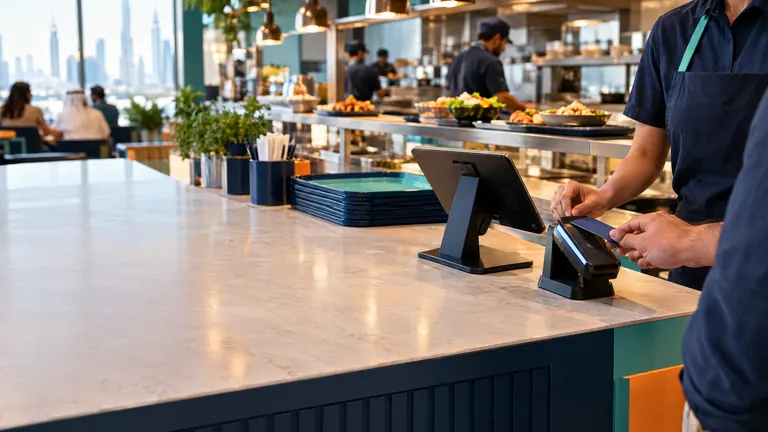
For a practical mixed-menu example, follow the cafeteria counter setup from item selection to kitchen handoff.
How do I create categories?
Start with your broadest natural groupings - the way you would describe sections on a printed menu. Keep category names short enough to read on a till button.
Practical tips:
- Aim for 5-10 categories for a typical restaurant menu. More than 15 makes browsing slow.
- Name them the way your cashiers will look for items, not the way a marketing team would describe them.
- Consider a "Specials" or "Today's Menu" category for items that change daily - it is easier to activate and deactivate items in one place.
- If you have separate beverage and food stations, separate categories help with kitchen routing.
How do I add products?
For each product, the POS needs at minimum: a name, a price, and the category it belongs to. But a well-built product record includes more:
- Name: in English and Arabic (for bilingual receipt and kitchen screen display)
- Price: the base price in AED, tax-inclusive or exclusive depending on your VAT configuration
- Category: which section it appears in on the till
- Image: a photo helps cashiers confirm the right item and speeds up visual browsing
- Tax profile: most items are standard rated; some may be exempt - set this per product so VAT is calculated correctly
- Short name or SKU: useful for searching by barcode scanner or quick-find
- Sold-out toggle: lets you 86 an item quickly without deleting it
Avoid creating duplicate products for the same item in different sizes. That is what variants are for.
What is the difference between a variant and a modifier?
This distinction matters for accurate pricing and kitchen communication.
Variant = a different version of the same product that has its own price.
Example: A cappuccino comes in Small (AED 16), Medium (AED 20), Large (AED 24). These are three variants of one product - one menu entry, three price points. The cashier picks a size and the correct price applies automatically.
Modifier = an instruction or add-on that adjusts the item but does not change the base product.
Example: "Extra cheese" (AED 3 additional), "No onion" (no charge), "Gluten-free bun" (AED 5 additional). Modifiers can be charged or free. They can be single-select (choose one sauce) or multi-select (any combination of toppings). Some can be required - the till will not let the cashier proceed without a selection.
| Variant | Modifier | |
|---|---|---|
| Changes the price? | Yes, each has its own price | Optional - can be free or charged |
| Appears as separate till item? | No - one product, multiple options | No - layered onto the product |
| Example | Small / Medium / Large | Extra Cheese / No Onion / Spicy |
| Can be required? | Yes - must pick a size | Yes - must pick a sauce |
How do I handle required modifiers?
Required modifiers prevent the cashier from ringing an order without the kitchen having all the information they need. A burger with a "choose your sauce" modifier set to required means the till will not let the cashier move on until a sauce is selected. The kitchen receives the completed instruction on the screen.
Set a modifier as required when the kitchen genuinely cannot make the item without knowing the choice - sauce, cooking level, base (rice or bread), side choice. Leave modifiers as optional when they are add-ons the customer may or may not want.
How do I manage sold-out items?
Running out of an item during service happens. The right approach is to mark it sold out in the POS instantly - it disappears from the till grid or shows as unavailable so cashiers cannot add it. This prevents the awkward moment of taking an order for something you cannot fulfil.
In TajerGo, a one-tap toggle marks any item sold out and reflects it immediately at every till. Mark it available again when stock returns and it reappears instantly.
What about menu images and visual browsing?
On a busy counter, a cashier who can see a product image alongside the name makes fewer mistakes - especially with items that have similar names (Chicken Burger vs Chicken Fillet Burger). Images also help when a new cashier is learning the menu.
Not every system requires images, but supporting them is worth asking about. They are especially useful in food and beverage retail where visual confirmation reduces errors.
How do changes to the menu take effect?
In a cloud-based POS, a menu change made in the Admin portal should propagate to every till within seconds. There should be no need to restart terminals, log out and back in, or manually push an update.
Confirm this during your demo: make a price change in the back office and verify it appears at the till immediately. If there is a delay or manual step, that is a risk during service when you need to update a price or 86 an item fast.
Read next: How to choose a restaurant POS in the UAE (pillar) · Setting up modifiers and variants for a faster till · How a kitchen display system speeds up service
Frequently asked questions
How long does it take to set up a restaurant menu in a POS?
For a typical restaurant menu of 50-80 items across 6-8 categories, initial setup takes roughly two to four hours, depending on how much information (images, modifiers, recipes) you add. The investment pays back quickly through faster, more accurate service.
Should I create a separate product for every size of a drink?
No. Use variants instead. One product with Small, Medium, and Large variants keeps your menu clean and ensures the correct price applies to each size automatically.
What happens if I set up a modifier but forget to mark it required?
If a modifier is not required, the cashier can skip it. The kitchen will not receive that instruction and may make the item incorrectly or have to ask. Set modifiers as required whenever the information is essential to making the item.
Can I have different menus for dine-in and takeaway?
This depends on the system. Some POS platforms allow visibility rules per order type; others show the same menu regardless of service mode. If you have items priced differently for dine-in versus delivery, ask about this specifically.
About this guide. Maintained by the TajerGo Editorial Team. Last updated 21 Jun 2026. Worked examples use illustrative numbers, not customer results.