
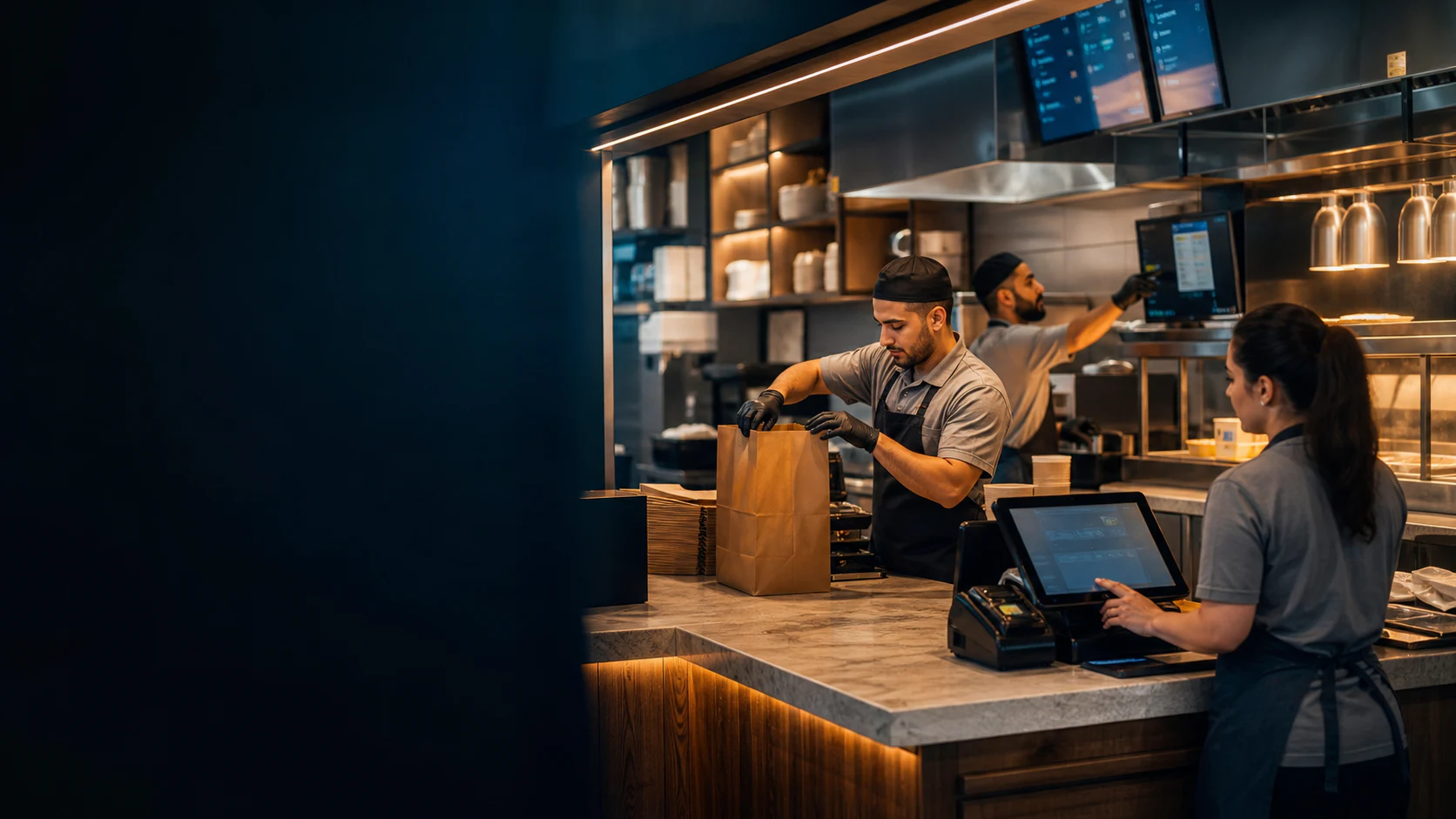
Set required choices and modifiers
Set required and optional choices such as size, drink, add-ons, substitutions, and kitchen notes. Bring each real combo to confirm its supported setup.
See the restaurant POSQSR POS · UAE
Run a quick-service order from counter choices to kitchen handoff and pickup from one connected record. Bring a real combo and rush scenario so the walkthrough can confirm the exact flow your team needs.
Free plan, AED 0. No card needed.
01 · Counter and pickup
Build the basket, confirm required choices, hold an unfinished order when needed, and keep the order type visible before it reaches the kitchen.
Set required and optional choices such as size, drink, add-ons, substitutions, and kitchen notes. Bring each real combo to confirm its supported setup.
See the restaurant POSPark a basket when a customer steps aside, serve the next order, and return to the held order without rebuilding it.
Keep the supported order type and pickup context visible so counter and kitchen teams can follow the same ticket.
Connect configured products and recipes to stock records, then keep receiving, counts, adjustments, transfers, and wastage in the inventory workflow.
Explore inventory controlBring one meal deal with required choices, one held-order case, and the kitchen handoff your team uses today.
Real TajerGo product screens
These approved product captures use sanitized demonstration data. The kitchen and inventory flows are reviewed live in the walkthrough until approved captures are available.
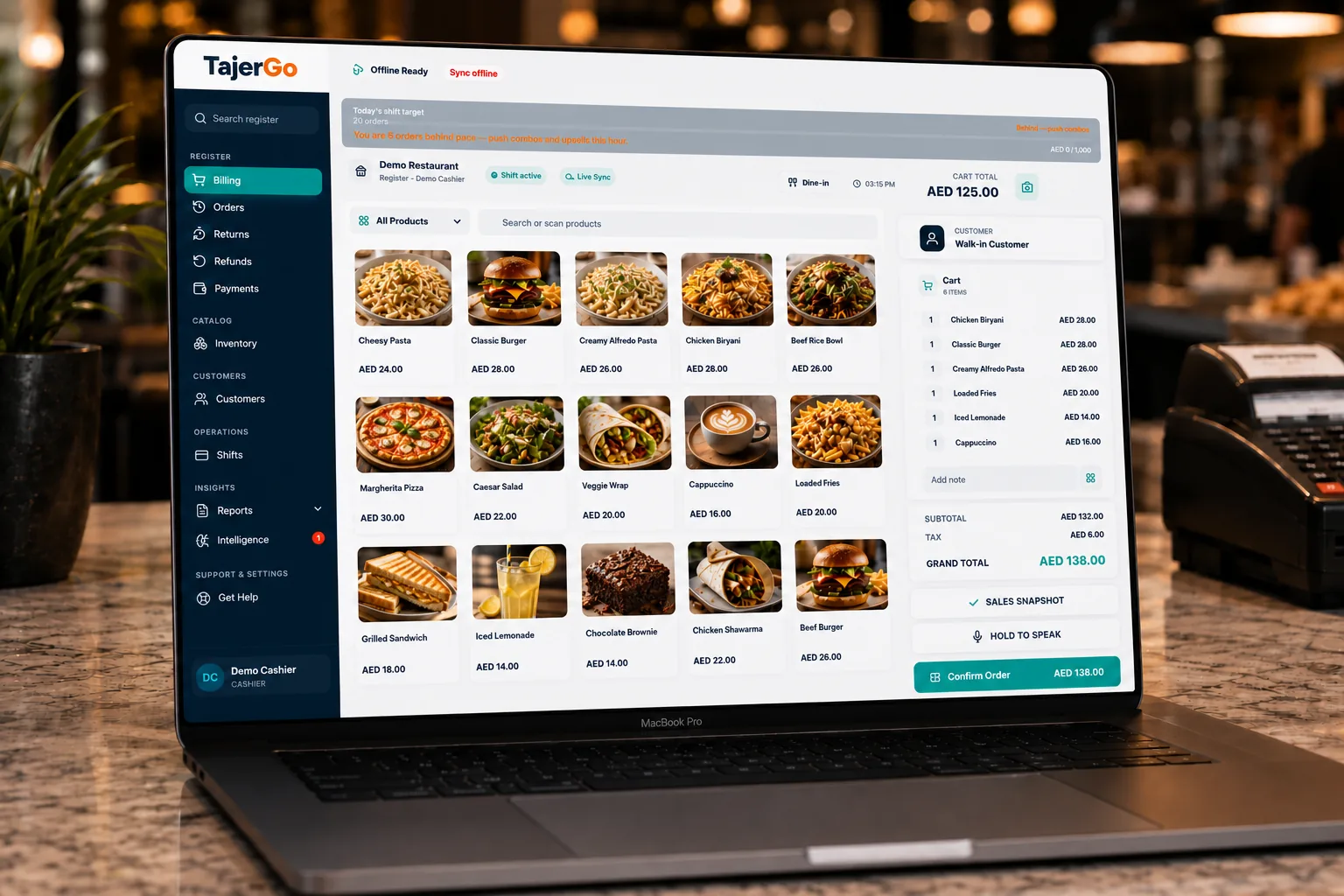
Keep the menu, basket, payment controls, receipt actions, and current order visible in the selling workspace. Use the walkthrough to test modifiers and held orders directly.
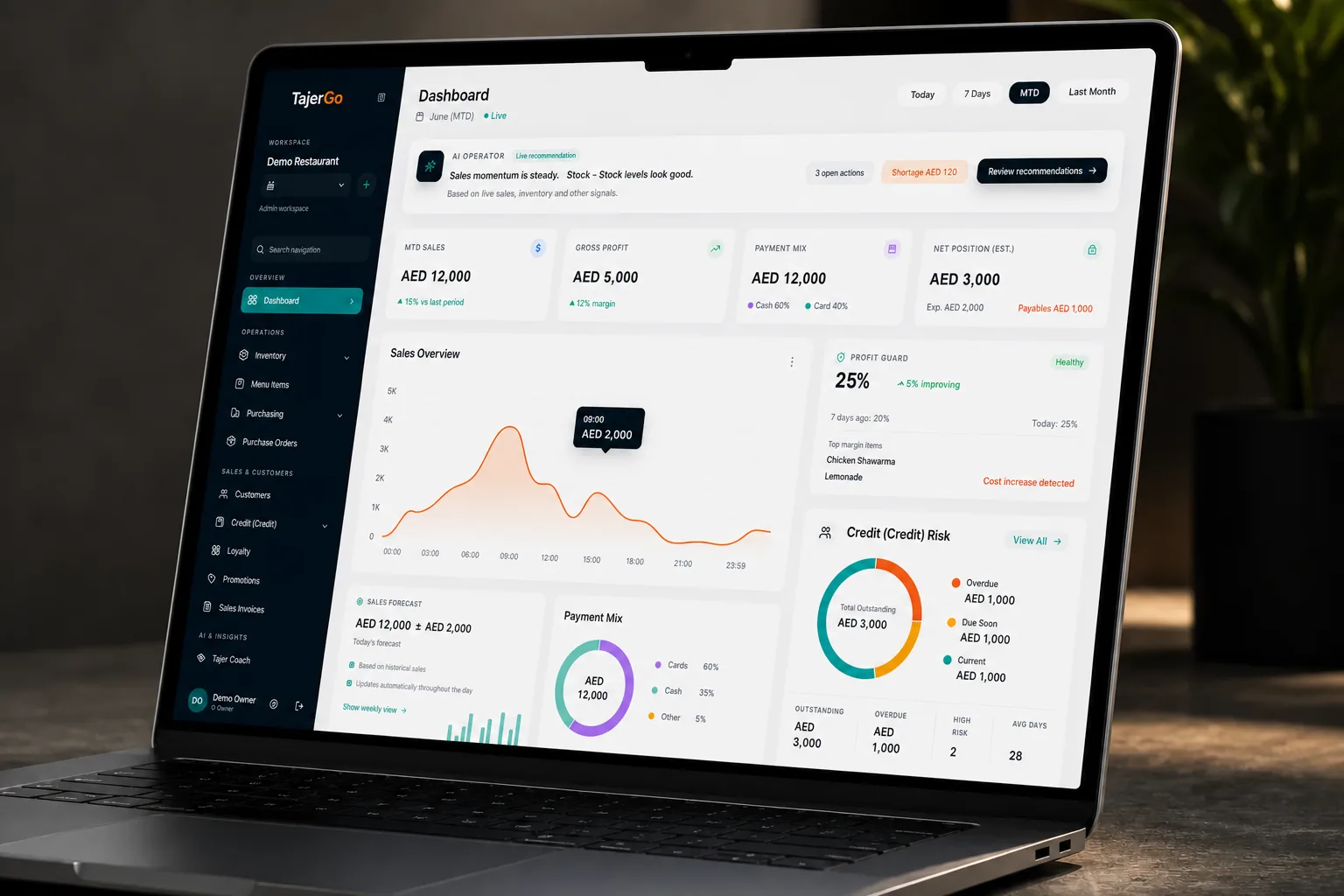
Authorized owners can review selected-branch or all-branch views. Stock movement, wastage, kitchen tickets, and shift controls are verified in the walkthrough for the configured roles and plan.
UAE rollout checks
Review the receipt, language, access, hardware, connectivity, and kitchen behavior for the branch you plan to run. Final tax treatment remains your responsibility with your adviser.
Configure AED, tax treatment, TRN, and receipt details, then review the final result for your business.
Confirm the supported counter, kitchen, owner, receipt, and right-to-left surfaces your team expects to use.
When offline mode is enabled, eligible new cash or wallet orders can be stored locally and synchronized after reconnection. Split payment, held-order settlement, and shift actions need a live connection.
Check cashier, manager, kitchen, and owner access for each active branch, including who can review shifts and stock changes.
A controlled switch
Start with the branch, menu, kitchen stations, and shift process you already use. Agree the data scope, device checks, training, and cutover sequence before the live counter changes.
Plan your migrationList the menu, modifiers, meal deals, branches, opening stock, roles, and exports available from the current system.
Confirm import scope, ticket routing, hardware, receipts, VAT and TRN details, and supported offline expectations.
Run counter, held-order, kitchen, pickup, shift-close, and owner-review scenarios with the people who will use them.
Agree the change window, support contacts, fallback plan, and handover before the first live order is taken.
Published pricing
FreeAED 0
Paid plans start atAED 99per active branch each month
One Business Account keeps active branches on one plan and billing relationship. Prices exclude VAT, if applicable.
QSR POS questions
Products can use required and optional choices such as size, drink, add-ons, substitutions, and kitchen notes. Bring two real combos to the demo so the exact supported setup and pricing can be confirmed.
Walk through your real QSR flow
Use the walkthrough to test the supported counter choices, kitchen handoff, pickup context, stock process, shift controls, and owner review your operation needs.
Your operator walkthrough
Built around quick-service work
Review how the counter, kitchen, pickup, stock, shift, and owner view fit your QSR operation.