On this page
- What Does Offline Mode Actually Mean?
- First Identify What Has Failed
- What Might Continue During an Outage?
- Taking an Order and Collecting Payment Are Separate
- Will Kitchen Screens and Printers Still Work?
- What Happens to Sales Saved on the Device?
- A Restaurant Outage Example
- A Practical Procedure for the First Few Minutes
- Reconnecting: Check More Than the Internet Icon
- Multi-Terminal Restaurants Need an Additional Test
- How to Test an Offline Restaurant POS Before Buying
- Choose Offline Capability You Can Demonstrate
- In the product
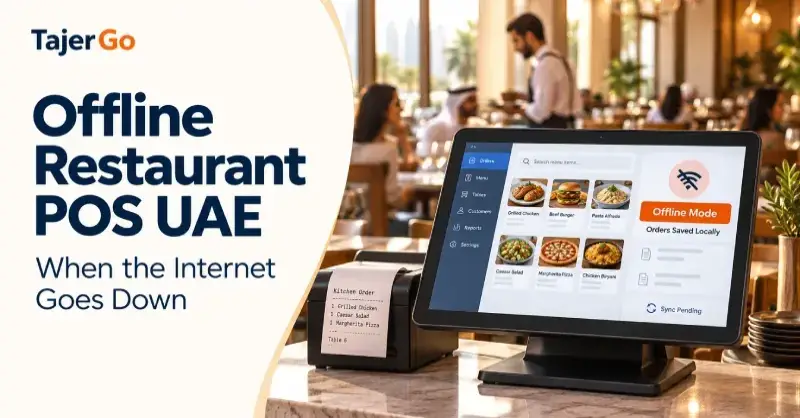
The lunch queue is growing when the internet connection drops. Your cashier can still see the menu, but can they complete an order? Will the kitchen receive it? Can the customer pay by card? For an owner researching offline restaurant POS UAE, these are the questions that matter.
Offline capability usually covers specific functions on a prepared device. It should not be interpreted as a promise that every payment method, kitchen screen and cloud report will continue working.
A useful outage plan identifies which tasks remain available, how staff should handle exceptions and what needs checking after the connection returns. The recovery process matters just as much as taking the next order.
What Does Offline Mode Actually Mean?
Offline mode allows supported POS functions to operate without an active connection to the remote service they normally use.
Depending on the product and setup, the device may retain menu information and save eligible transactions locally. Those records can then upload when connectivity returns.
The important word is supported. Different systems handle offline operation differently, and availability can depend on the device, session, payment method and configuration.
A till that can save a new cash order offline may still be unable to:
- Retrieve a record that was not available locally.
- Confirm a payment through an external processor.
- Share changes with another terminal.
- Update an owner’s cloud dashboard.
- Receive an order from an online platform.
- Complete an action requiring online authorisation.
Ask the provider to demonstrate each function your restaurant needs rather than accepting “works offline” as a complete specification.
First Identify What Has Failed
An internet outage, a Wi-Fi failure and a power cut create different problems.
| Failure | What it can affect | First practical check |
|---|---|---|
| External internet connection | Cloud services and online integrations | Check whether the local network still works |
| Local Wi-Fi or network equipment | Communication between devices | Check the router, access point and device connection |
| POS application or session | Access to the till | Follow the provider’s recovery procedure |
| Payment-terminal connection | Card authorisation | Check the terminal and processor status separately |
| Power supply | POS, printers and network equipment | Use the restaurant’s power-continuity procedure |
If the external internet connection fails while the local network remains available, some locally connected equipment may still communicate. That depends on the system’s architecture.
If the router loses power, the situation is different. A battery-powered till might remain on while its network printer becomes unreachable.
Staff need to recognise the difference before assuming that one fallback will solve every problem.
What Might Continue During an Outage?
The following table is a demonstration checklist, not a guarantee for every POS.
| Function | What the restaurant should establish |
|---|---|
| Viewing the menu | Which items and prices are available locally |
| Creating a new order | Which order types can be saved offline |
| Recording cash | Whether the sale can close and enter a local queue |
| Recording a wallet payment | Which specific wallet workflow is supported |
| Taking card payments | Whether the processor and terminal can authorise them |
| Printing a receipt | Which printer connection works during the tested failure |
| Sending kitchen tickets | Whether delivery to the kitchen requires internet access |
| Sharing open tables | How terminals behave when they cannot communicate |
| Viewing reports | Whether the screen is current or awaiting uploaded sales |
The restaurant should know these answers before a busy service.
A prepared till is different from a new session
Some offline workflows depend on the till being opened and signed in while online.
Do not assume a device that has never loaded the application, an expired session or a newly opened browser can start selling during an outage.
Include session preparation in the opening checklist and test what happens if the application closes unexpectedly.
Taking an Order and Collecting Payment Are Separate
A POS can record a payment method without independently proving that money was collected.
This distinction becomes especially important when a connection is unreliable.
Cash payments
Cash does not require an external payment authorisation. The POS still needs to save the order and cash amount reliably, calculate change and retain the record until it uploads.
Staff should confirm that the order has entered the supported offline workflow rather than repeatedly pressing the payment button.
Card payments
Card behaviour depends on the processor, terminal, connection and merchant arrangement.
A terminal with its own working mobile connection may remain online even when restaurant broadband fails. That is a separate connection, not proof that the card payment was authorised offline.
Do not mark a card payment successful because the POS can save the sale. Confirm the terminal result.
Wallet payments
“Wallet” can describe different payment arrangements. Recording a wallet tender in the POS does not necessarily mean the external wallet service can process a transaction without internet access.
Ask which workflow is supported and how staff verify collection. Apply the restaurant’s approved procedure when payment status is uncertain.
Avoid immediate retries when the result is unclear
If a terminal appears to time out, check the payment status before charging the customer again. A payment may have succeeded even when its confirmation did not reach the till.
Staff should have a clear escalation route for uncertain transactions.
Will Kitchen Screens and Printers Still Work?
Offline selling does not automatically establish offline kitchen communication.
A till may save an order locally while a kitchen display depends on a cloud connection. A printer may use a local network, USB, Bluetooth or another arrangement.
Test the equipment as a connected workflow.
Check the kitchen received the order
The cashier should know how to distinguish:
- An order saved at the till.
- An order sent successfully.
- An order received by the kitchen.
- An order still waiting to transmit.
Those states should not be treated as interchangeable.
During a disruption, use an agreed fallback for orders that cannot reach the kitchen. Record a clear reference so staff can recognise the same order if it appears after reconnection.
Prevent duplicate preparation
If staff communicate an order manually, the kitchen needs to know whether to prepare it again when a delayed ticket arrives.
A simple outage procedure should assign responsibility for marking manually communicated orders and checking delayed tickets.
TajerGo’s kitchen display and routing guide provides a useful starting point for reviewing the normal kitchen workflow. Confirm its behaviour during an outage separately.
What Happens to Sales Saved on the Device?
In a supported offline workflow, transactions may remain in a local queue until the device can reconnect.
That queue is different from a successfully uploaded cloud record.
Until synchronisation completes, the original device remains important. Staff should not assume the same orders are available on another terminal.
Protect pending records
Follow the provider’s instructions for the application and device. In particular, avoid clearing site data, resetting the device or removing local records while transactions are waiting to upload.
If a manager wants to switch devices, first establish how pending orders on the original till will be recovered.
Watch the queue status
A useful sync indicator helps staff understand whether transactions are waiting, uploading or failing.
A return of internet access does not prove that every pending transaction uploaded successfully. Check the queue and resolve exceptions.
TajerGo’s offline POS and sync guide describes supported local queuing and the checks required after reconnection.
A Restaurant Outage Example
Consider this hypothetical scenario.
A cafe’s broadband fails at 1:00 pm. The prepared till supports eligible offline cash transactions. During the next 20 minutes, staff complete 12 cash orders worth AED 630.
The till retains those orders locally. A card terminal with a separate working connection also processes other payments, following the cafe’s approved procedure.
When broadband returns, the manager checks:
- Whether all 12 queued orders uploaded.
- Whether their combined value is AED 630.
- Whether payment methods remained correct.
- Whether any manually entered records duplicated an existing sale.
- Whether delayed tickets require kitchen review.
- Whether the reporting period contains the recovered transactions.
If only 11 orders are confirmed as uploaded, the manager investigates the pending record before treating the recovery as complete.
This is an illustrative checklist. The exact recovery steps depend on the POS and payment setup.
A Practical Procedure for the First Few Minutes
Staff should not have to invent an outage process while customers wait.
Confirm the disruption
Check the till status and whether the problem affects one device, the local network or the internet connection.
Assign one person to investigate so several staff members do not change settings at the same time.
Restrict service to verified workflows
Use only the order and payment functions confirmed during testing.
If the kitchen route is unavailable, activate the agreed fallback. Explain any payment limitations to customers before they order.
Keep transaction references clear
Record manual exceptions consistently. Staff need enough detail to reconcile the sale without re-entering every transaction automatically.
Preserve the affected device
Keep the device available and powered where practical. Avoid resets or data-clearing actions while pending records remain.
Escalate uncertain payments
A manager should handle transactions where the terminal and POS show different results.
This prevents a connection problem from becoming a duplicate-charge or missing-payment problem.
Reconnecting: Check More Than the Internet Icon
Restoring connectivity begins recovery. It does not finish it.
Verify queued transactions
Check that pending orders have uploaded and investigate failures using the provider’s documented process.
Review manually recorded exceptions
Compare any temporary records with uploaded orders before creating new transactions.
A manual note may describe a sale already saved by the till.
Reconcile payments
Check cash, terminal records and POS payment classifications. Resolve uncertain card outcomes through the processor’s procedure.
Check kitchen exceptions
Identify any order that was prepared from a manual instruction and subsequently arrived electronically.
Complete the shift review
Confirm that the shift records include recovered transactions and explain any outstanding exceptions.
TajerGo’s shift-close workflow covers cash counting, variance review and handover records. Include outage notes in the appropriate review process.
Multi-Terminal Restaurants Need an Additional Test
Two tills working independently during an outage may not share the latest information.
Ask the provider how the system handles:
- The same table opened on two devices.
- Bill transfers between terminals.
- Menu changes made elsewhere.
- Shared stock availability.
- Refunds relating to another device’s sale.
- Orders that reconnect at different times.
Do not assume offline terminals can coordinate simply because each can save a new order.
A temporary operating rule, such as keeping a table with one assigned terminal, may help where the provider recommends it. Establish the procedure during setup rather than during the outage.
How to Test an Offline Restaurant POS Before Buying
Run the demonstration on the devices and connections the restaurant intends to use.
Prepare the normal setup
Sign in, load the menu and connect printers and kitchen screens. Confirm the starting state.
Disconnect external internet access
Test a new order using a supported payment method. Check the receipt, local queue and kitchen result separately.
Test local-network failure separately
A broadband-disconnection test does not show what happens when Wi-Fi or the router fails.
Restore connectivity
Watch the queue upload and compare the recovered order with its original details.
Check an exception
Ask the provider to show how staff investigate a pending or failed upload. Also confirm what happens if the application closes before synchronisation.
Write down what the demonstration proved. Unsupported functions should remain explicit in the restaurant’s operating procedure.
Choose Offline Capability You Can Demonstrate
The useful buying question is specific: can this till complete the orders your restaurant needs, preserve their records and recover them correctly after a connection failure?
Test a real menu item, the intended payment method and the actual kitchen route. Then reconnect and verify the complete transaction.
Ask TajerGo’s team to walk through that sequence with your devices and operating requirements. A successful outage test gives managers and cashiers a procedure they can follow when service is busy.
Read next: Restaurant POS Software UAE · Restaurant Inventory Software UAE
About this guide. Maintained by the TajerGo Editorial Team. Last updated 17 Oct 2026. Worked examples use illustrative numbers, not customer results.